
IPTV Extreme UK in 2026 : Setup, Features, and Safety Checks
IPTV Extreme UK is an app many UK viewers use to play IPTV streams through their own playlists and service details. It gives you a simple way to watch live channels, manage links, and set up playback on supported devices.
If you’re trying to get IPTV working on a Fire Stick, Android TV box, phone, or tablet, the setup can feel confusing at first. The main questions are usually about playlist support, how the app handles streaming, and what you need to enter before anything will play.
That’s why this guide focuses on the basics, so you can see how IPTV Extreme works, what devices it fits, and what to check before you start using it.
How IPTV Extreme UK works on everyday devices
IPTV Extreme UK works by reading the channel or service details you add, then turning that data into a watchable list on your screen. Once the app has the right playlist or login details, it pulls in live channels, and in some cases on-demand content, so you can start playing streams on the device you already use.
The process is simple on the user side. You add the source, the app loads the content, and your device handles playback. After that, the experience depends on the quality of the stream, your internet connection, and how well the provider keeps the playlist updated.
What you need before you can start watching
Before anything plays, you need a few basic pieces in place. The app can’t create content on its own, so it needs a source and a device that can handle it.
A typical setup includes:
- A subscription or service access so you have valid IPTV details
- An M3U playlist if your provider gives you a playlist link or file
- Xtream Codes details if your provider uses a username, password, and server URL
- A stable internet connection so streams load without constant buffering
- A compatible device such as a Fire Stick, Android TV box, phone, tablet, or smart TV
Once those pieces are ready, setup is usually straightforward. You enter the details, let the app scan or load the playlist, and then browse the channel list or content categories.
A reliable connection matters just as much as the app itself. Even a well-built setup can feel poor if the stream keeps dropping or the Wi-Fi signal is weak. For best results, start with the basics, use the correct playlist format, and make sure your device has enough storage and performance for smooth playback.
Why the app feels different from a regular TV service

IPTV Extreme UK feels different because it follows your provider’s setup instead of a fixed TV package. You may see a custom channel list, grouped categories, or a layout that matches the playlist you imported. That gives you more control over how things are arranged.
On everyday devices, the app also changes the way you watch. A phone works well for personal viewing, a tablet gives you a larger screen, and a TV box makes it easier to use on the living room screen with a remote. The app adjusts to the device, but the viewing experience still depends on the stream itself.
That is where provider quality matters most. A clean playlist with solid streams feels smooth and easy to use, while a weak source can lead to missing channels, slow loading, or poor picture quality. In practice, the app is only one part of the experience, the stream source does most of the heavy lifting.
Key features that matter most to UK users
UK viewers usually care about speed, ease, and reliability more than flashy extras. With IPTV Extreme UK, the most useful features are the ones that help you find channels quickly, keep your list tidy, and watch without extra fuss.
That matters even more when a playlist is large. A good layout can save time every day, while a messy one turns simple browsing into a chore. The best setup feels natural, like a familiar TV guide that already knows what you watch.
Playlist support, channel sorting, and favorites
A strong playlist setup is one of the biggest reasons people choose this kind of app. IPTV Extreme UK can work with playlists and provider details, so you can load live channels into one place and browse them without jumping between apps.
Once the list is in place, sorting becomes important. You can usually group channels, move them into categories, and mark the ones you use most. That helps a lot when the list is long, because scrolling through hundreds of channels gets old fast.

Favorites are the real time-saver. Save your most-watched channels, and you can jump straight to them without digging through sports, movies, or international sections every night.
A simple setup often includes:
- Favorite channels for quick access to the stations you watch most
- Category sorting to keep sports, news, and entertainment apart
- Playlist filtering to cut down on clutter
- Search tools when you need a channel in a hurry
If you use the app daily, a clean channel list matters more than extra features you may never touch.
For UK users, this kind of organization is handy on a Fire Stick or Android TV box, where remote control navigation needs to stay simple. The less time you spend scrolling, the faster the app feels.
Catch-up, EPG, and playback controls
The other features that matter most are the ones that make live viewing easier to manage. An electronic program guide, or EPG, gives you a schedule view so you can see what is on now and what comes next. That makes browsing feel more like proper TV and less like a raw playlist.
Some providers also support catch-up viewing. If that feature is included, you can go back and watch shows you missed, which is useful for busy evenings or live events you could not watch in real time. Pause and resume controls help too, especially when a stream buffers or you need a quick break.
Playback support can vary by provider, though. Some services include full EPG data and catch-up, while others only offer live channels and a basic guide, so the app’s experience depends on what your IPTV source provides.
A useful way to check features is to look for:
- A working EPG with current program details
- Pause and resume controls during playback
- Catch-up access where your provider supports it
- Clear playback response when you switch channels
That mix is what makes daily use feel practical. When the guide loads properly and playback controls behave well, the app becomes much easier to live with.
Setting up IPTV Extreme UK the right way
A solid first setup makes IPTV Extreme UK much easier to use later. If you start with the right device, the right login method, and a clean connection, the app feels simple instead of frustrating.
The goal is to get the basics right before you worry about extra features. That means choosing a device that can handle playback well, entering your playlist details carefully, and fixing small issues early if the app misbehaves.
Choosing the right device and app version
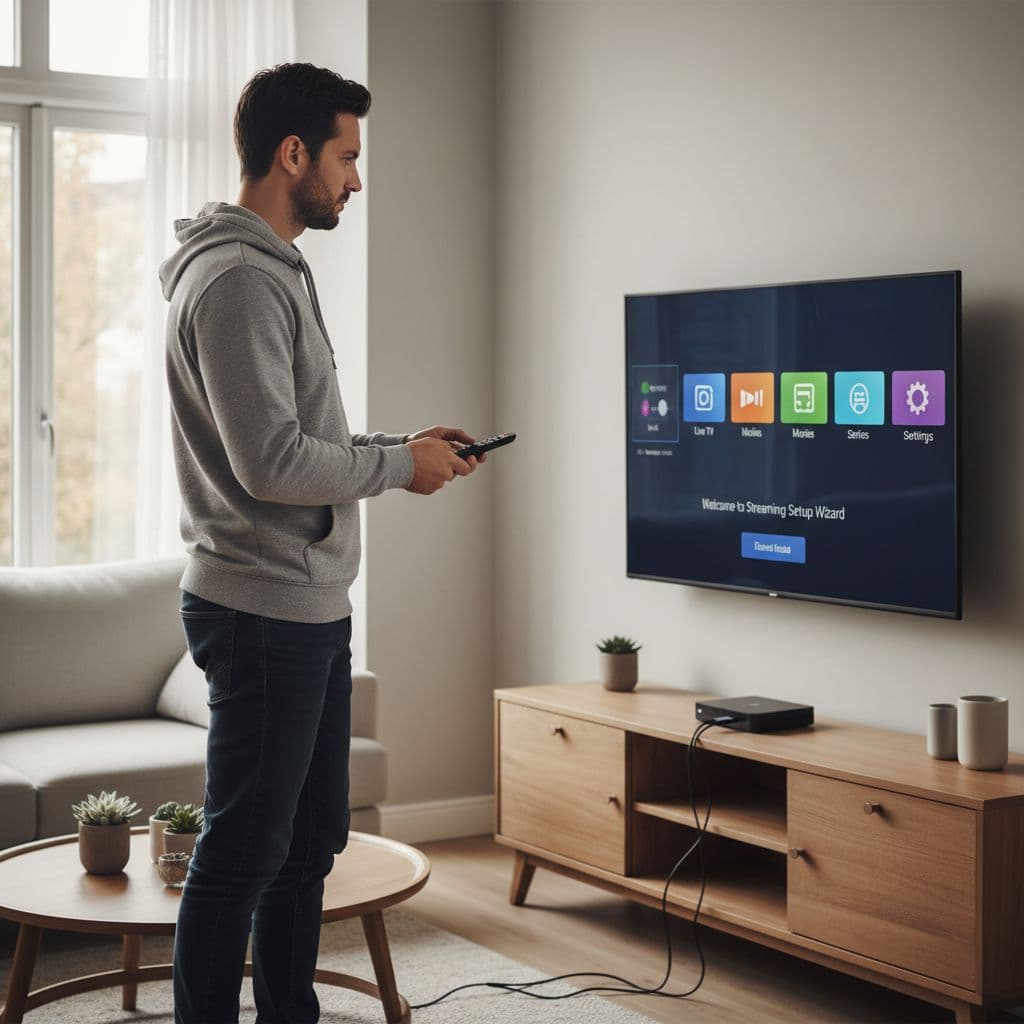
Start with a device that matches how you watch. Android phones and tablets are good for personal viewing, while Fire TV devices and Android TV boxes work better on a big screen with a remote. That matters because device compatibility and performance can shape the whole viewing experience.
A newer device usually handles playlists, channel loading, and playback more smoothly. Older hardware can still work, but it may take longer to open the app, switch channels, or load a guide. If your device already struggles with other video apps, it may do the same here.
The app version matters too. Use the version that fits your device type and system version, because the wrong build can lead to crashes or missing features. After installing, give the app the storage and network permissions it needs, then check that it opens cleanly before you add anything else.
A simple way to stay on track is to check these points first:
- Device type: Android phone, tablet, Fire TV, or Android TV box
- Performance: enough memory and storage for smooth playback
- App version: the build that matches your device and Android version
- Connection: stable Wi-Fi or Ethernet before setup begins
Adding your playlist or provider details
Once the app is ready, add your service details carefully. Most setups use either an M3U link or Xtream Codes login details, which usually include a username, password, and server address. Both methods are common, but the exact steps depend on what your provider gives you.
If you use an M3U link, paste it exactly as provided. A single missing character can break the whole playlist. If you use Xtream Codes, enter the login fields one by one and make sure the portal address matches the provider’s instructions.
Small errors cause a lot of setup problems. A typo in the username, an expired link, or the wrong portal address can stop channels from loading even when everything else looks fine. So take a slow pass before saving the details.
A quick setup check helps a lot:
- Enter the playlist or login details exactly as provided.
- Double-check for typos in usernames, passwords, and links.
- Confirm the portal or server address is correct.
- Save the details, then wait for the app to load the channel list.
Simple fixes for buffering and login problems
If playback stutters or the app won’t log in, start with the basics. First, check your internet speed and make sure the connection is steady. Buffering often comes from a weak signal, crowded Wi-Fi, or a slow network at busy times.
Next, restart the app. That clears temporary glitches and often fixes loading problems fast. If the issue stays, clear the app cache, then open it again and try reloading your playlist or account details.
It also helps to confirm that your subscription is still active. An expired account can look like a technical fault, when the real problem is simply that the service is no longer valid. If login details were copied from a message or email, check them again before trying too many changes.
A few practical fixes cover most common issues:
- Check the internet connection if streams keep freezing or refusing to load
- Restart the app if menus or channels stop responding
- Clear the cache if the app feels stuck or slow
- Confirm the subscription is active if login fails after setup
When IPTV Extreme UK has trouble, the fix is usually basic. Slow internet, a bad login entry, or an expired service is often the real cause.
If the app still refuses to behave, remove the details and add them again carefully. That fresh start often solves problems that a quick retry won’t touch.
What to look for in a safe and reliable IPTV service
A good IPTV Extreme UK service should feel steady, clear, and easy to trust from day one. The app matters, but the provider matters just as much, because weak servers or sloppy support can ruin even a well-set-up player.
When you compare services, focus on the basics first. Stable channels, fast loading, clear pricing, and honest support usually tell you more than big promises ever will.
Signs of a better streaming experience
The best sign of a solid IPTV Extreme UK service is how it behaves during normal use. Channels should open quickly, switch without long delays, and keep playing without constant drops. If the stream stutters every few minutes, the problem is usually the service, not your app.
Server quality matters a lot here. Strong servers and good uptime keep channels available when you want them, while poor infrastructure turns simple viewing into a stop-start mess. In day-to-day use, that difference is easy to feel.
Look for services that are clear about what you get. Pricing should be easy to read, with no hidden add-ons or vague extra fees. Support also matters, because even a small setup issue feels worse when nobody answers.
A better service usually gives you:
- Stable channels that load quickly and stay on
- Responsive support when you need help with setup or playback
- Clear pricing with plain terms and no surprises
- Good uptime backed by reliable servers and steady performance

If a service feels slow during a trial or demo, it usually gets worse once more users join in.
Why legality and trust should come first
Before you sign up, check whether the service says it has the proper rights to stream content in the IPTV Extreme UK . That may be listed in its terms, on its site, or in the way it presents its channel access. If that information is vague, unclear, or missing, treat it as a warning sign.
Trust also shows up in small details. A real service usually has contact information, clear payment terms, and straightforward account rules. On the other hand, a site that hides its details or changes prices without explanation deserves caution.
A practical check helps here. Read the service terms, review refund language, and look at how support handles basic questions before you pay. That way, you judge the provider on more than the channel list alone.
For IPTV Extreme UK viewers, the safest approach is to keep the focus on transparency. If a service is open about its rights, pricing, and support, it is easier to use with confidence.