
IPTV Setup: Get a Legal Service Running
IPTV Setup delivers live or on-demand video over an internet connection. To watch without risky downloads or constant buffering, start with a legitimate service and a device it supports.
This IPTV Setup guide covers choosing a provider, preparing your device, installing its app, and fixing common playback problems. First, check what your service requires.
What You Need Before Your IPTV Setup
You’ll need reliable internet, a compatible device, and an active subscription. Check all three before you pay.
Choose a device and a trusted provider
Smart TVs, Roku or Fire TV streaming devices, phones, tablets, and computers are common options. Before subscribing, check the provider’s supported devices, app availability, channel lineup, price, and licensing information. Be wary of an offer that promises premium channels cheaply but says nothing about its rights to show them.
Check your internet and app requirements
Compare your connection with the provider’s current speed guidance. The FCC’s home broadband guide also explains why other people using your connection matter. Use stable Wi-Fi or Ethernet, confirm your device has enough free storage, and find the official app in its app store.
How to Complete an IPTV Setup Step by Step
Once you’ve checked compatibility, follow the provider’s instructions. Menu names and sign-in steps vary between services.
Install the app and sign in securely
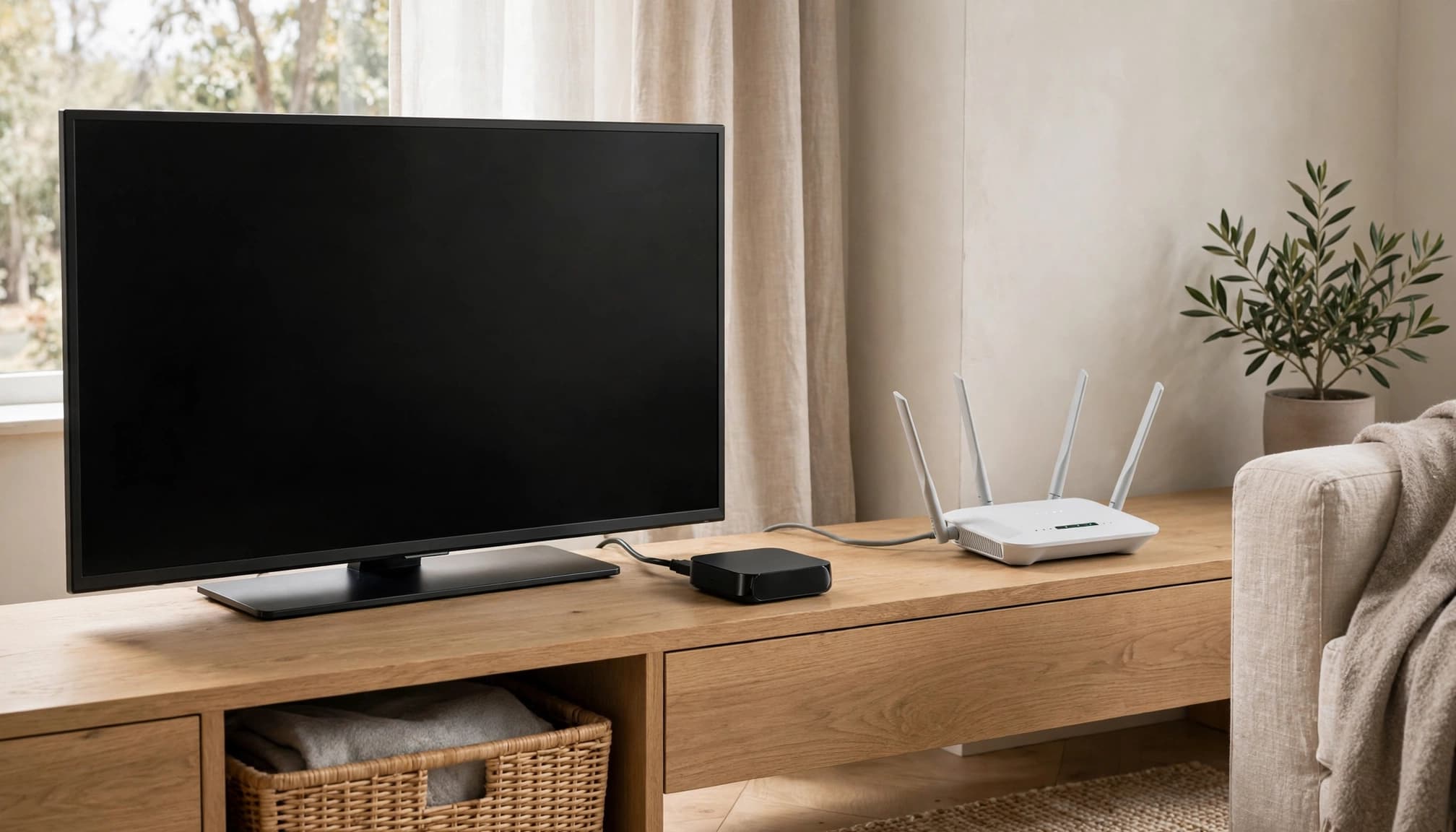
Open your device’s official app store or the provider’s official setup guide. Install the listed app, then enter account details only in that app or on the provider’s website. If your TV displays a pairing code, follow the provider’s device activation instructions.
Test a channel or on-demand show
Select a channel and let it play for a few minutes. Check picture and sound, then try an on-demand title if your subscription includes one. If playback fails, check for an account or device activation message before changing network settings. Avoid unknown playlists and untrusted app downloads.
Fix Buffering and Keep Your IPTV Setup Safe
A quick connection check can help you tell a home-network problem from a service problem.
Try these fixes when video buffers or won’t play
See whether another device can access the internet. If it can’t, restart your router and check your connection. If other devices work, reopen the IPTV Setup app, update it, and try another channel.
Next, move closer to the Wi-Fi router or try Ethernet. If your home connection remains unreliable, review a router setup guide. When the same service fails on multiple connected devices, check the provider’s status page or contact its support team.
Protect your account and device
Use a strong, unique password and keep your device updated. Download apps only from official sources. IPTV Setup providers should have rights to the content they offer, so avoid suspicious subscriptions with unclear licensing or payment terms. Contact the provider if app errors continue.
Get Ready to Watch
IPTV Setup comes down to a compatible device, a legitimate provider, its official app, and a tested connection. Those checks make playback problems easier to track down.
For device-specific steps, use your provider’s help page.